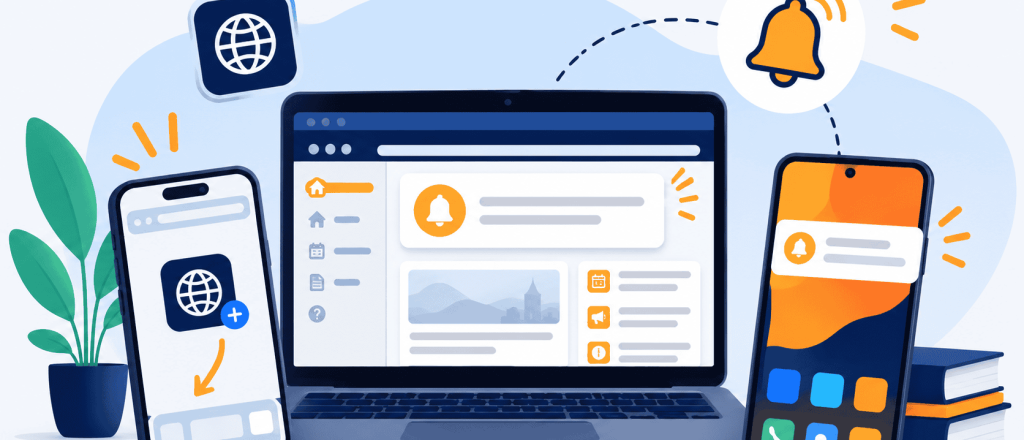
How to receive Push Notifications
Receive Student Portal notifications on your phone, tablet or computer, including important alerts, college news and reminders.
Push notifications are optional, and you can choose which types you receive. They can appear even when the Student Portal is not open, depending on your browser and device settings.
Enable push notifications
Open the Student Portal and select the subscribe button at the top of the Student Notices Section on the homepage. Follow the instructions for your device below.
Laptop or desktop computer
- Open the Student Portal in your web browser
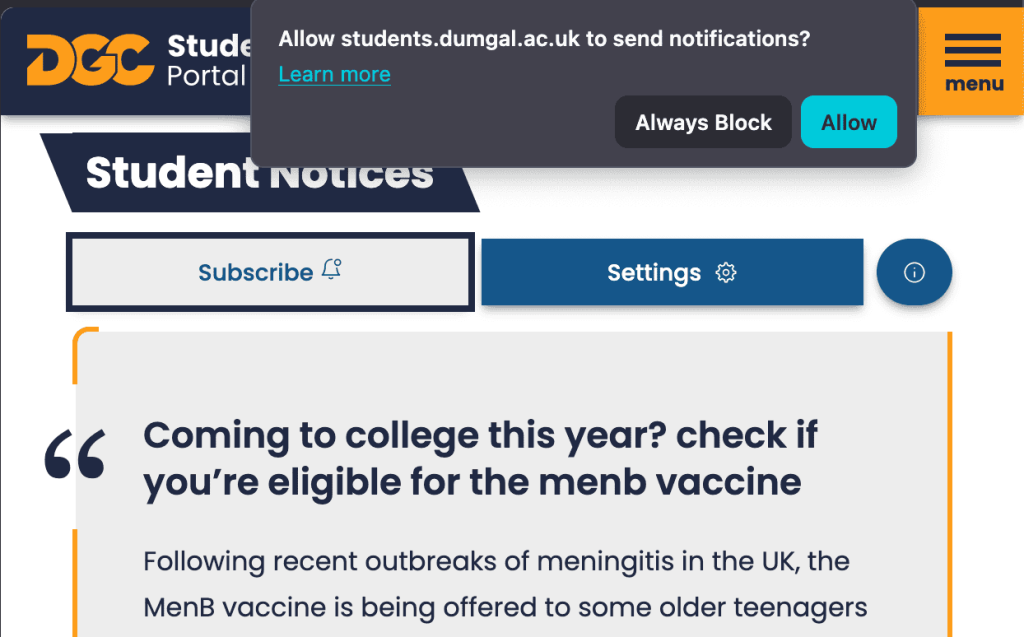
- Click the “Subscribe” button above the student notices section
- When your browser asks for permission select “Allow“
- If you want to change the types of notifications you receive click the “Settings” button at the top of Student Notices.
Note: If you previously blocked notifications, you may need to change the permissions in your browser settings.
iPhone or iPad
Important: On an iPhone or iPad the Student Portal must be added to your Home Screen before notifications can be enabled.
- Add the Student Portal to your Home Screen
- Open the Student Portal using Safari
- Tap the three dots on the bottom right
- Tap the Share option
- Scroll down and Tap Add to home Screen
- Tap Add
- The Student Portal will now have been added as a Web App to your phone.
- Enable Notifications
- Open the Student Portal using the new icon on your Home Screen
- Tap Subscribe
- When your device asks for permission tap Allow
- You can change what types of notifications you receive by tapping the Settings button on the home page.
Android phone or Tablet
- Install the Student Portal Web App
- Open the Student Portal in Chrome
- Select “Install App” if the option appears.
- If it does not appear, open the Chrome menu using the three dots
- Select install app or “Add to Home Screen“.
- Follow the instructions on your screen
- Enable Notifications
- Open the Student Portal
- Tap Subscribe at the top of the Student Notices section on the home page.
- When your device asks for permission, select Allow
- Choose the types of notifications you would like to receive by tapping settings at the top of the Student Notices Section on the home page.
Manage your notifications
You can change your notification choices at any time:
- Open the Student Portal.
- Select the settings button
- Choose which types of notifications you want to receive.
You can also unsubscribe completely from the notification settings by selecting “unsubscribe“
Not seeing notifications? Check that notifications are allowed for the Student Portal in your browser or device settings. Battery-saving and focus settings may also prevent notifications from appearing.